
Find Your Best Free Online Teaching App
Not sure which tool fits your teaching style? Answer a few questions to get a personalized recommendation for the best free app stack in 2026.
Teaching used to mean standing at the front of a room with a whiteboard. Now, it means logging into an app that hopefully doesn't crash while thirty students try to unmute themselves at once. If you are looking for the best free online teaching apps in 2026, you are likely balancing budget constraints with the need for reliable technology. The good news? You don't need a corporate budget to run effective classes anymore.
The landscape has shifted dramatically. What was once a fragmented mess of paid subscriptions is now dominated by robust free tiers that offer genuine value. However, "free" often comes with hidden limits-time caps on meetings, watermarks on recordings, or limited storage. To help you navigate this, we will break down the top contenders, their specific strengths, and where they fall short.
What is the absolute best free app for live online teaching?
For most educators, Google Meet remains the top choice due to its seamless integration with Google Classroom and lack of time limits for group calls. Zoom is a close second but restricts group meetings to 40 minutes on the free plan.
The Big Three: Video Conferencing Giants
When people ask for teaching apps, they usually mean video conferencing tools. These are the backbone of synchronous learning. Let's look at the heavy hitters.
Google Meet is a video communication service developed by Google that integrates deeply with Google Workspace. It is currently the king of free education tech. Why? Because there is no time limit. You can teach for three hours straight without the app kicking everyone out. It works directly in your browser, so students don't even need to download software. If your school or district already uses Gmail, this is your default option. The interface is clean, the audio quality is surprisingly good even on slower connections, and the background blur feature helps maintain professionalism.However, Google Meet lacks some advanced interactive features found in competitors. There is no native breakout room function in the free tier, which makes group work harder to manage. You also cannot record sessions to the cloud unless you have a paid Workspace account; recordings save locally to your computer, which eats up hard drive space quickly.
Zoom is a leading unified communications platform known for its reliability and feature-rich interface. For years, Zoom was the undisputed champion. It still offers excellent screen sharing, annotation tools, and a very stable connection. The free plan allows up to 100 participants, which is plenty for most small-to-medium classes. The killer feature here is Breakout Rooms. Even on the free plan, you can split students into smaller groups for collaborative tasks, a critical feature for active learning.The catch? The 40-minute time limit on group meetings. Once the timer hits zero, everyone is disconnected. You can restart the meeting immediately, but it disrupts the flow of a lesson. For one-on-one tutoring, however, Zoom allows up to 24 hours, making it perfect for private tutors who don't need to host large lectures.
Microsoft Teams is a collaboration platform part of Microsoft 365 that combines chat, video meetings, and file storage. If your institution uses Office 365, Teams is likely already installed. The free version of Teams (often called Teams for Life) is robust. It supports video calls, screen sharing, and file collaboration in real-time. Unlike Zoom, it doesn't have a strict time limit for group calls in many educational contexts, though this can vary by region and license type.Teams feels heavier than Google Meet. It requires more system resources and can be confusing for younger students or those less tech-savvy. The interface is cluttered with chats, files, and tabs. But if you need to assign homework, share Word documents, and hold a class all in one place, Teams reduces the friction of switching between apps.
Beyond Video: Interactive Whiteboards and LMS
Video calls alone aren't enough for engaging teaching. You need a canvas to draw on, a place to post assignments, and a way to track progress. This is where Learning Management Systems (LMS) and digital whiteboards come in.
Google Classroom is a free management tool designed to simplify creating, distributing, and grading assignments. It isn't a video app, but it is the command center for many teachers. You can create classes, distribute materials, and grade quizzes entirely for free. It integrates perfectly with Google Docs, Slides, and Forms. When combined with Google Meet, you get a complete ecosystem: Classroom for administration and Meet for instruction.The downside is that Google Classroom is not visually exciting. It looks like a filing cabinet. For creative subjects like art or design, it lacks the visual flair needed to inspire students. Also, it relies heavily on the student having a Google account, which can be a barrier for some families.
Miro is an online collaborative whiteboard platform that enables distributed teams to visualize ideas together. Miro offers a generous free plan that includes three editable boards. This is ideal for brainstorming sessions, mind mapping, or group projects. Students can drag and drop sticky notes, draw diagrams, and collaborate in real-time. It turns a passive lecture into an active workshop.The limitation is the board count. Once you fill up your three boards, you have to archive old ones to make space. For a semester-long course with weekly activities, this can become cumbersome. However, for occasional interactive sessions, Miro is unmatched in flexibility.
Kahoot! is a game-based learning platform that creates quizzes, surveys, and discussions. Gamification keeps students engaged. Kahoot's free plan allows you to create unlimited quizzes and play them with up to 10 players in the lobby, though you can invite more via links. It's perfect for quick reviews, exit tickets, or icebreakers. The energy it brings to a class is undeniable.The free version shows ads and limits some question types. But for simple multiple-choice quizzes, it remains a staple in online teaching toolkits.
Comparison Table: Key Features at a Glance
| Platform | Best For | Time Limit (Group) | Max Participants | Key Free Feature |
|---|---|---|---|---|
| Google Meet | Simplicity & Integration | None | 100 | No downloads required |
| Zoom | Interactivity | 40 mins | 100 | Breakout Rooms |
| Microsoft Teams | All-in-One Workflow | Varies | 100 | File Collaboration |
| Miro | Visual Collaboration | N/A | Unlimited viewers | Infinite Canvas |
| Kahoot! | Assessment & Fun | N/A | Unlimited | Game-Based Quizzes |
Specialized Tools for Niche Needs
Not every teacher fits the same mold. Language tutors, coding instructors, and music teachers have unique requirements. Here are specialized free options.
Preply and Italki are marketplaces, not just tools. They allow you to list yourself as a tutor for free. You keep a high percentage of earnings compared to other platforms. While not a "teaching app" per se, they provide the infrastructure to find students and schedule lessons without upfront costs.
For coding teachers, Replit is a game-changer. It’s an online IDE (Integrated Development Environment) that allows students to write and run code in their browser. The free tier is sufficient for basic Python, JavaScript, and HTML/CSS classes. You can share your workspace with students in real-time, allowing you to debug their code together.
Music teachers might prefer Skype. While older, Skype still offers high-quality video and low latency, which is crucial for playing instruments in sync. It’s completely free for peer-to-peer calls and widely available.
Pitfalls to Avoid with Free Plans
Free is great, but it requires discipline. Here are common traps:
- Data Privacy: Free apps often monetize user data. Read the privacy policy. Ensure you are compliant with GDPR (if in Europe) or FERPA (if in the US). Avoid apps that sell student data to advertisers.
- Storage Limits: Cloud storage fills up fast. If you record lessons, back them up externally. Don't rely solely on the app's free storage.
- Feature Lockouts: Just when you think you've mastered a tool, you hit a paywall for a feature you now depend on. Plan your curriculum around what is permanently free, not what is temporarily trialable.
- Technical Support: Free users are last in line for support. Have backup plans. If Zoom crashes, do you have a WhatsApp group ready? Always have a secondary communication channel.
How to Choose the Right Stack
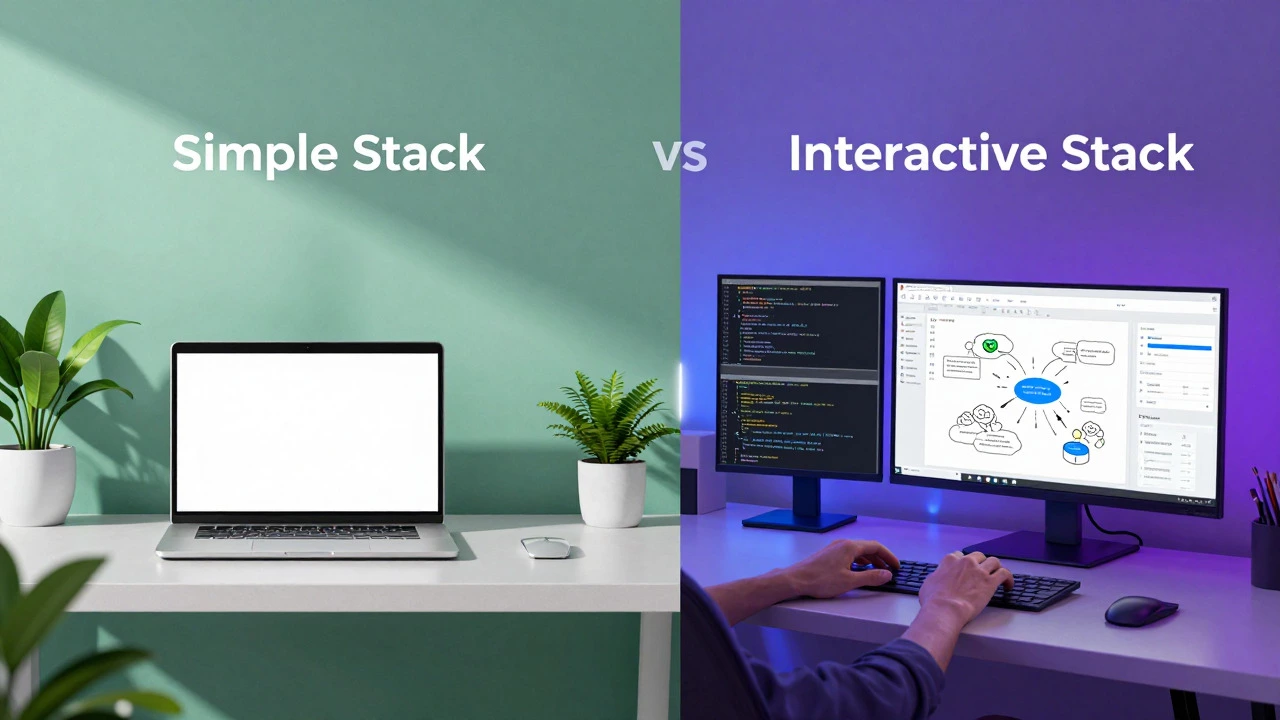
You rarely need just one app. The best approach is a "stack" of complementary tools. Here are two recommended combinations:
The Simple Stack: Google Meet + Google Classroom + Kahoot!. This is ideal for K-12 teachers or those who want minimal setup. Everything runs in the browser, accounts are easy to create, and the integration is seamless.
The Interactive Stack: Zoom + Miro + Replit (or similar). This is better for higher education, professional training, or skill-based workshops. It prioritizes engagement and hands-on activity over administrative ease.
Start with the Simple Stack if you are new to online teaching. Master the basics of screen sharing and muting before adding complex whiteboards or coding environments. Complexity kills engagement if the technology fails.
Final Thoughts on Cost vs. Value
While these apps are free, your time is not. Invest time in learning the tools thoroughly before your first class. Run a test session with a friend. Check your microphone. Test your internet speed. The best app is the one you know how to use confidently. In 2026, the technology is accessible. The barrier is no longer cost, but preparation. Choose the tools that align with your teaching style, stick with them, and focus on connecting with your students rather than fighting the interface.
Is Zoom really free forever for teaching?
Yes, Zoom's basic plan is free forever, but it limits group meetings to 40 minutes. One-on-one meetings can last up to 24 hours. For continuous group teaching, you must restart the meeting every 40 minutes.
Which app is best for recording lessons for free?
OBS Studio is a free, open-source software that records your screen and webcam without time limits or watermarks. It is more technical to set up than built-in app recorders but offers superior control and quality.
Can I use WhatsApp for online teaching?
WhatsApp is good for quick updates and voice notes, but poor for formal teaching. It lacks screen sharing, breakout rooms, and structured assignment tracking. Use it as a backup communication channel, not your primary classroom.
Are there any free apps for managing student grades?
Google Sheets is the most powerful free option for grading. Combined with Google Forms, you can auto-grade multiple-choice quizzes. For more structure, Google Classroom provides a built-in gradebook.
What if my students don't have computers?
Prioritize mobile-friendly apps. Google Meet, Zoom, and Kahoot! all have robust mobile apps. Avoid tools that require a desktop mouse for interaction, like complex whiteboards, unless you provide detailed mobile tutorials.